Woah, that looks great
1 Like
@Atobe_Brick I’m a little late on this, but I’m currently trying to get this pack (and possibly another one? I have no clue) and I swear I’m following the directions in 100 different ways and I still can’t get the Custom Parts tab to show up. I’ve come to the conclusion that my computer is too old to do anything with it but I just thought I’d ask around just to make sure.
What Computer do you have?
Actually have you found the “LDraw” folder?
If you are in that you should create a new folder named “Custom Parts” if it isn’t in there, I had to do the same.
1 Like
So I put just the folders from the pack (and the folders contents) into the Ldraw folder and I do that for any other packs? I have a Windowa computer and I think I remember seeing that file. Instructions are not very helpful at all in making that clear.
Not exactly. In the LDraw folder there should be one folder called collision and one called connection. The contents of their respective counterpart in the Biopack should be placed in them. Then create the Custom Parts folder in the LDraw w and shove the parts folder of the biopack in.
1 Like
Welp, assuming I did everything right, it still isn’t working. Thanks for your help tho.
1 Like
I don’t think Senit’s instructions are correct. Custom Parts should be placed in C:\Users\<your username\AppData\Local\Studio\CustomParts (the studio directory name might be incorrect - look for Studio, Stud.io, or Studio 2.0). Inside CustomParts will be 3 folders: collider, connectivity, and parts. In a pack, .col files go in the collider folder, .con files go in the connectivity folder, and .dat files go in the parts folder. Occasionally, packs may include a “p” folder as well which you just place in CustomParts. If there’s already a “p” in there, just put all the stuff from “p” in there too.
1 Like
Yeah I think I mine might just work on Mac
1 Like
Thanks for telling me. I’ll give it another go with your instructions but if it doesn’t work I’ll just call it quits until I can get a newer machine. I plan on possibly getting one some time in the next few months anyway.
1 Like
If my instructions don’t work out, DM me on here and I can give you a step-by-step walkthrough.
For some reason, I can never navigate this way; the AppData folder doesn’t show up in my username folder.
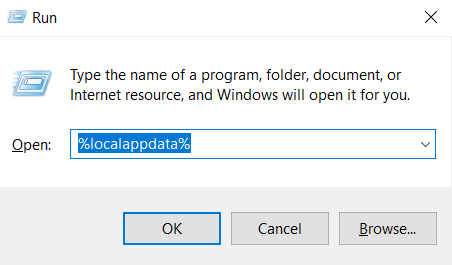
My shortcut for getting to Local is to hit Win + R while in File Explorer, and then type “%localappdata%” in the window that pops up:
1 Like
That’s normal, AppData is a hidden folder by default.
1 Like
Yup. I think in the “View” context menu in Explorer you can set hidden folders to be shown.
Okay, so I’ve been able to get the Custom Parts tab to show up as a tab but I can’t get any parts to show up. I followed your instructions and I managed to get the file to get the tap to show up from doing stuff in the AppData/Local area but even with all the content copied into another CustomParts file in the regular Stud.io 2.0 tab, nothing is showing ups still. Is there anything else I should be doing after that?
1 Like
Are the parts sorted into their respective folders? CustomParts should contain three folders, collider, connectivity, and parts, and they should contain all the files: col files go in collider, con files go in connectivity, and dat files go in parts.
Does anyone know of any mod that has part 60895 the large Av-Matoran torso? Thank you.
I made a rough version in PartDesigner.
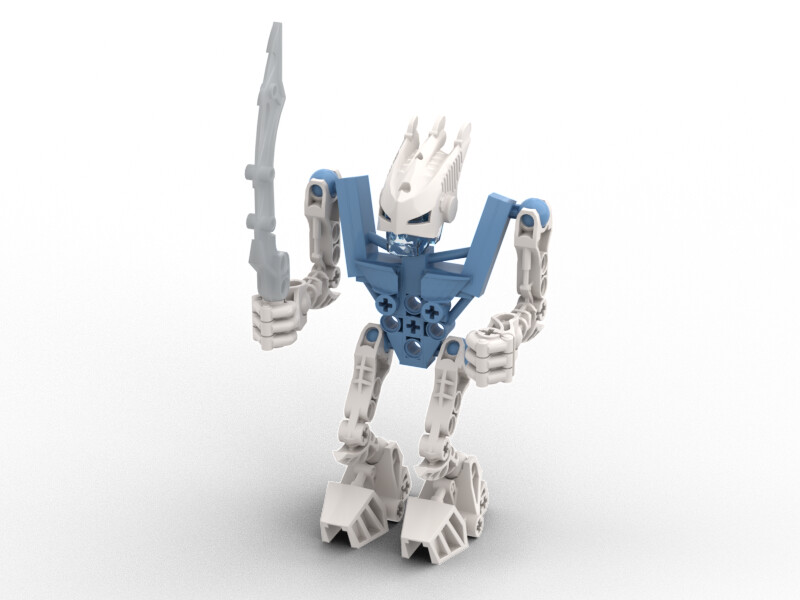
TTV won’t let me attach the part files directly, but you can download them from my parts pack at this link:
https://drive.google.com/drive/folders/1Jw3N2Wx4yDWkXAN3AdFiCVYN87Cj7UfU?usp=sharing
Let me know if you have any issue finding the file; you should be able to just search for the part number (60895).
3 Likes